Connect your apps
Agents work in the apps your company already uses: your mailbox, your files, your payments. You connect each app for the agents that need it, and every agent works only with the apps connected for it.
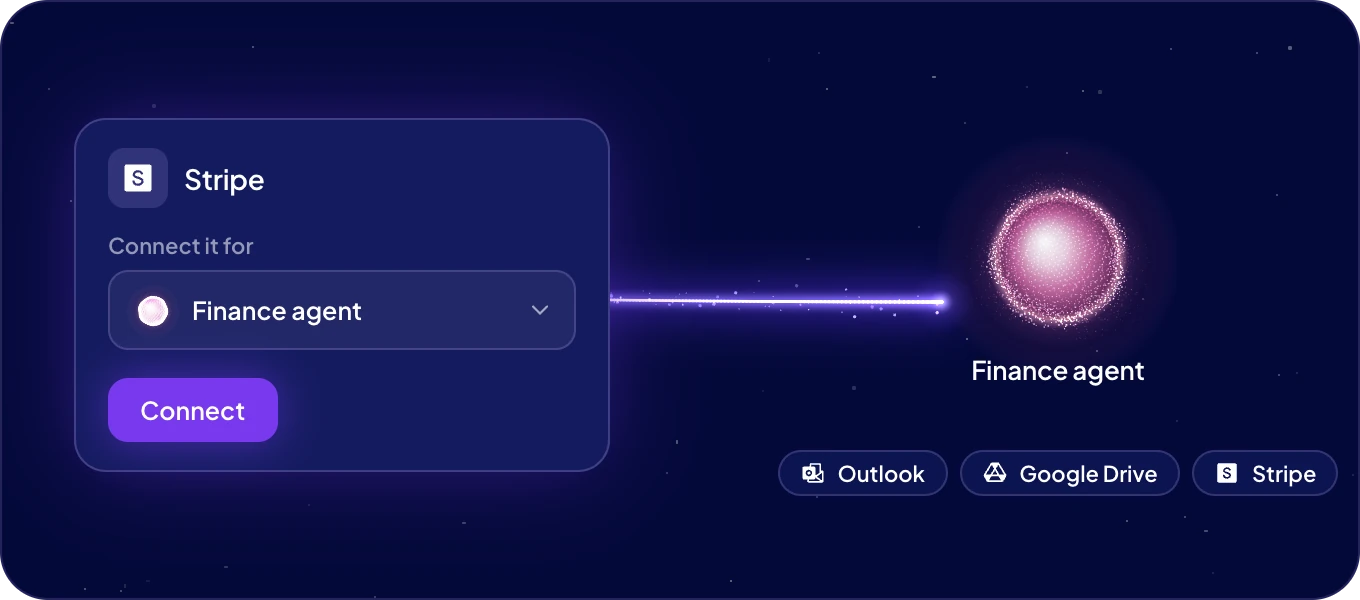
How do I connect an app?
- Click Connections in the left rail and open the Library tab.
- Find the app with Find a connection…, or narrow the list with Type and Category.
- Open the app. With more than one agent, choose the one under Connect it for.
- Click Connect, and sign in to the app if it asks you to.
The app then appears in Your connections, in its own row for that agent.
What if the app is not in the Library?
Ask an agent to connect it. Below the Library list, next to Not in the library?, click Connect with an agent. The chat opens with the request ready, for example "Connect Zendesk". Send the request, and the agent sets up the connection and asks you to sign in.
Can another agent use the app too?
Yes. Open the app in the Library, choose that agent under Connect it for and click Connect.
What does Your connections show?
Every connection of your agents in one list: apps, team chats, logins and AI tools.
| Column | What it shows |
|---|---|
| Connection | The app or service. |
| Account | The account the agents use there. |
| Agents | The agents that may use it. |
| Access | How the agents get in, such as Sign-in, API key or Bot. |
| State | Connected, or what needs your attention. |
Use Find a connection… and the Type filter to narrow the list.
Next: Connections and security, to set what each agent may do with your data.
