ACT automations
An ACT automation runs work that repeats, the same way every time. You describe it in a sentence. Your agent writes it, tests it and switches it on once you confirm. Every run is recorded, so you always see what ran and what came out.
What can I automate?
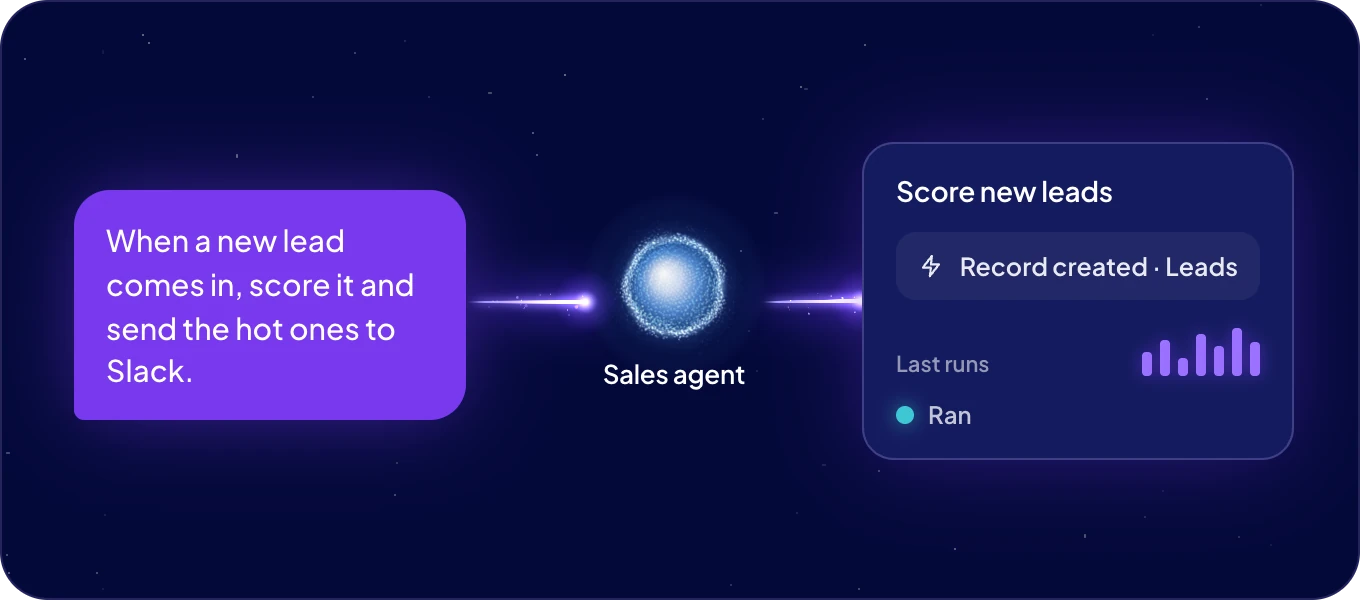
- Reacting to your data. "When a lead is created, score it and post the hot ones to Slack."
- Reports on a schedule. "Every weekday at 7:00, send me yesterday's orders by country."
- Keeping data in shape. "Every night, fill in missing product categories."
- Reacting to other apps. "When our e-shop sends an order, add the customer to Contacts."
How do I build one?
Tell Boosty or an agent in Chat, or click New automation in Automations. Say when it runs, what it works with and what it does with the result. The agent builds it, tests it and asks you to confirm before it goes live. See Build in chat.
Where do I find them?
Click Automations in the left rail, then the ACT automations tab. Each automation shows its trigger under When. Click one to see its latest runs. The tab is open to admins.
The Agent automations tab next to it holds the jobs agents run on their own schedule. See Agent automations.
What starts an ACT automation?
A schedule, a record that is created, updated or deleted, or another app calling its webhook. See Triggers and webhooks.
Who can build them?
An agent builds automations when its Automations access is Allowed. Set it in Connections and security. An admin can build them from an AI tool too, through Connect AI (MCP), signed in with OAuth or with a token that has All permissions.
In this section
| Page | What it covers |
|---|---|
| Build in chat | Describe an automation, confirm it, change it later. |
| Triggers and webhooks | Schedules, data changes, and calls from other apps. |
| Secrets | API keys and passwords, kept out of the chat and the code. |
| Runs | Every run, what it returned, and what to do when one fails. |
