Your AI team
Your agents live on Home. Each one is a specialized AI agent for a real business role, and they all work on the same company data. You see who is on the team, what state each agent is in, and you hand out work from the same screen.
What is on the Home screen?
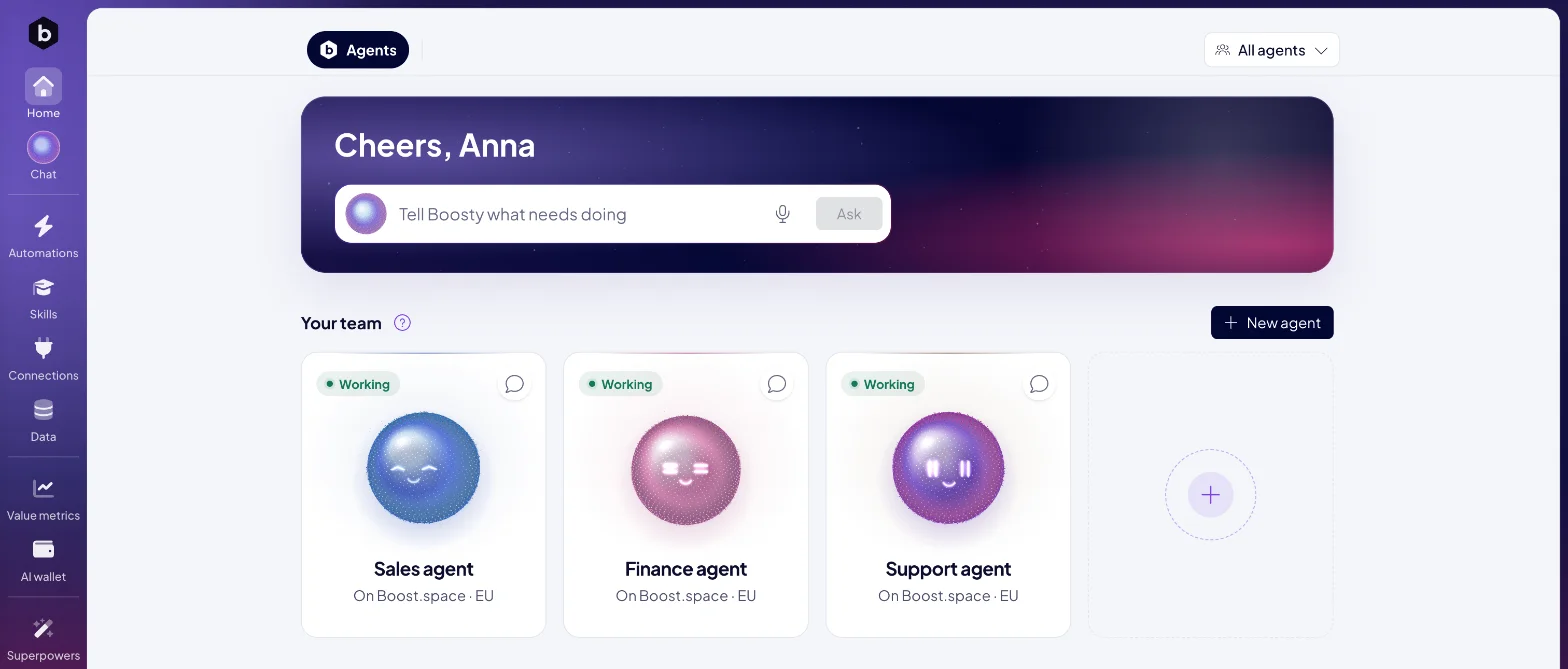
- Tell Boosty what needs doing. Type a request and click Ask, or click the microphone to Talk to Boosty. Boosty passes the job to the agent that fits it. See Talk to Boosty.
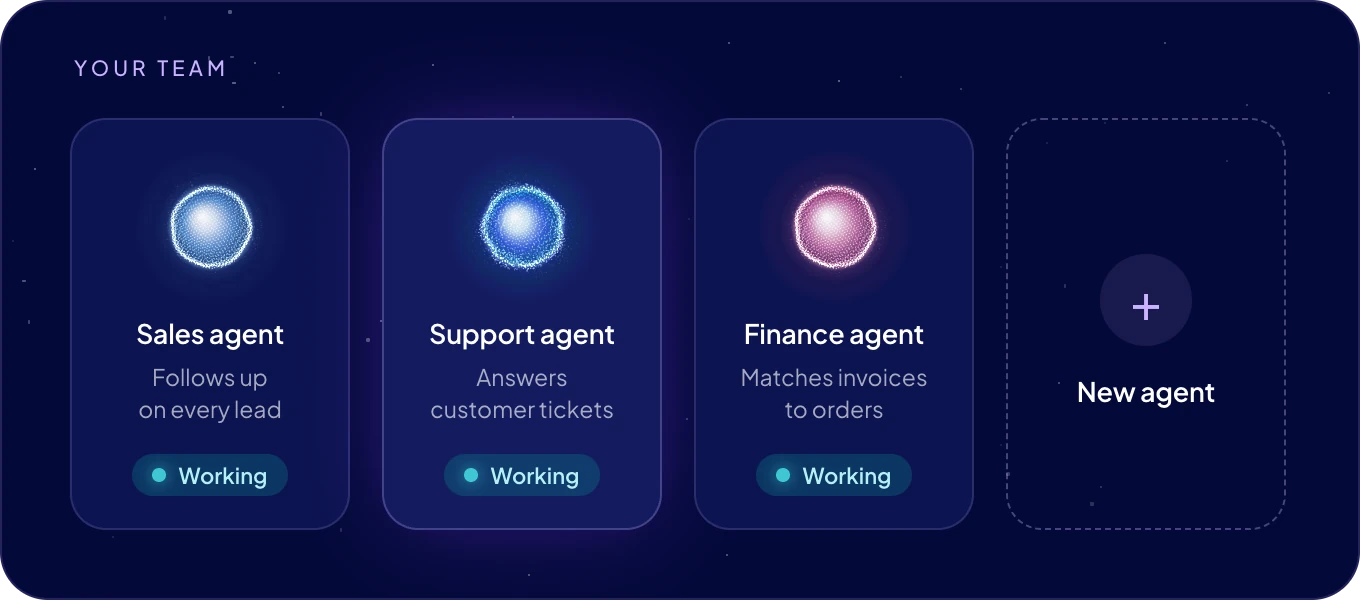
- Your team. One card per agent: its face, its name, the instance it runs on and its status.
- New agent. Adds an agent to your team. The dashed + card does the same. See Add an agent.
What does an agent's status mean?
| Status | What it means |
|---|---|
| Working | The agent is running and takes work. |
| Setting up | The agent is being created on its instance. |
| Waiting for the server | The agent's instance has not answered yet. |
| Setup failed | Creating the agent on its instance did not finish. |
| Needs a look | The instance stopped reporting the agent. Check the instance in Settings > AgentOS > Instances. |
How do I give an agent a job?
- Through Boosty. Write the request on Home or in Chat. Boosty picks the agent.
- Directly. Click the speech bubble on an agent's card, Ask <name> to do something, to open that agent's chat.
- From your data. Select records in a table of your module and choose Ask an agent (<count>). Chat with Boosty opens with the records in the message box, ready for you to add the task and send. See Work with records.
Where does an agent run?
Every agent runs on an instance: a server that runs agents. Most teams start with Boost.space cloud, which Boost.space runs in the EU and keeps up to date. You can also run agents on your own server. The card says which one, for example "On Boost.space · EU". See Add an agent.
Who manages the team?
Admins add agents, decide what each one may use, and connect them to messaging apps.
Next: Add an agent to grow your team, or open Your agent's page to see what one agent does.
