Modules and fields
A module is one kind of data, such as Products, Deals or Tickets. You decide which modules you need and what each one holds, and you can add more as you grow. Admins set up modules, and everyone works with their records.
How do I create a module?
- Click Data in the left rail, then Create your first module. For every later module, open Settings > Data > New module.
- Build a module with AI opens. Describe the purpose or give a sample record, and click Generate.
- Set the module's name and icon and click Continue. AI proposes the spaces of the module with their fields. Check each one and click Create space, or Skip this space.
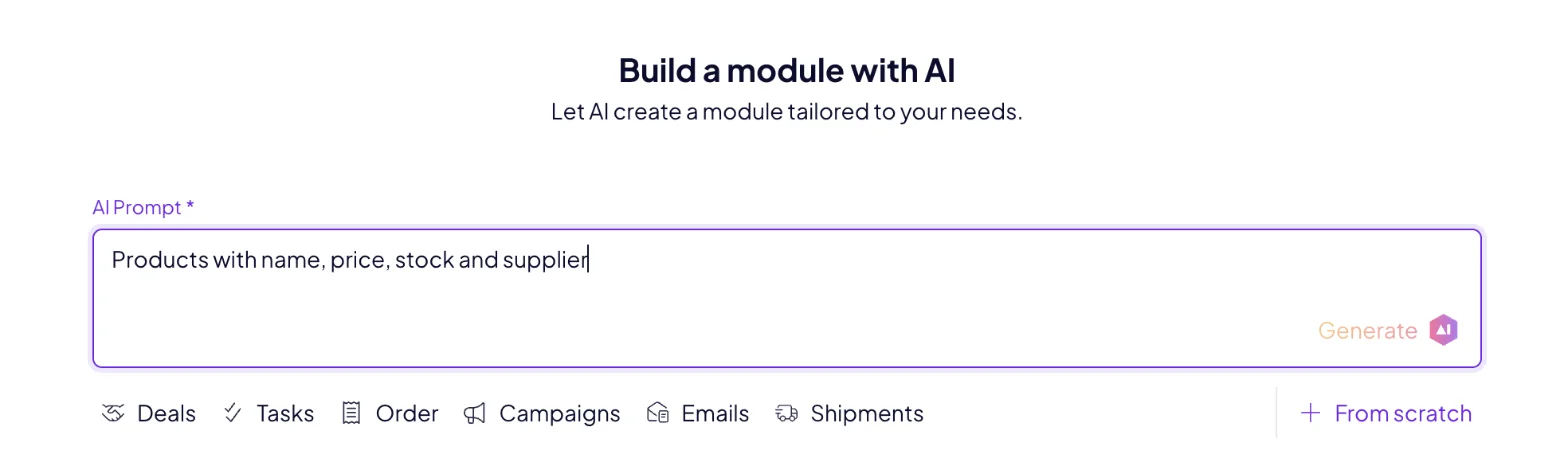
Prefer to design it yourself? Choose From scratch and add the fields one by one.
How do I add or change fields?
Pick a space, click New above the table and choose New field. Pick the field type that fits the data, such as text, number, date, a choice from a list, a file, a person or a link to records in another module. All your fields are also in Settings > Data > All modules > Fields.
Typed fields keep your data clean: dates sort as dates, prices add up, and agents know what each value means.
How do I organize records into spaces?
Spaces group the records of one module, for example by team, region or client. Click + (New Space) at the end of the spaces bar to add one. All spaces shows every record of the module at once.
How do statuses and labels work?
A status says where a record stands, such as New, In progress or Done. Labels are tags you can add to any record. Set them up in Settings > Data > All modules > Statuses and Labels, then set them on records one by one or in bulk.
Where are the other data settings?
Settings > Data holds everything about your data. All modules opens Modules, Fields, Statuses, Labels, Tables & details and Menu editor, which sets the order of your modules. Each module also has its own entry there.
Next: Work with records, or Import and export to fill your new module.
